Expanding Images with Outpaint
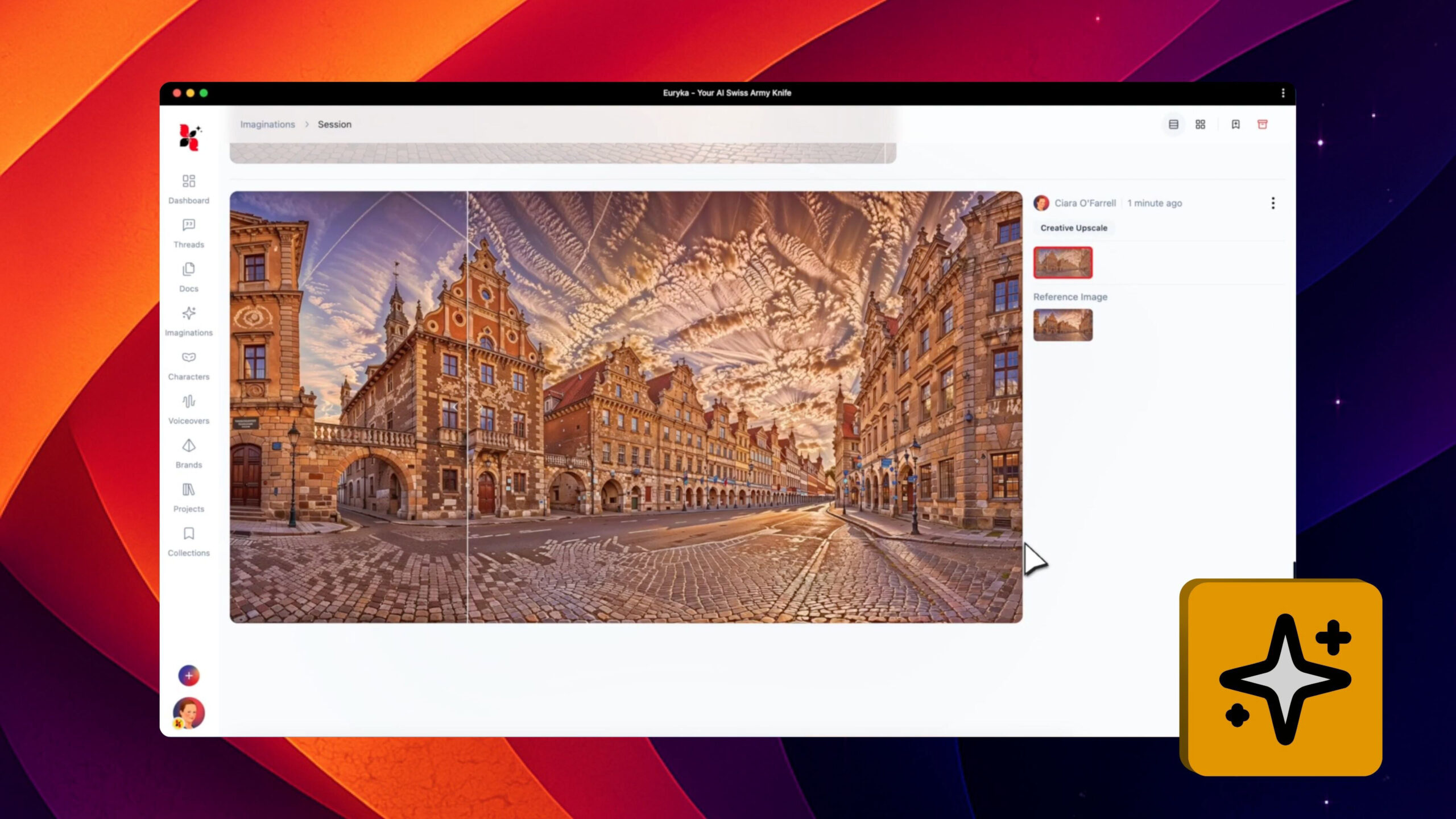
Ever wished you could extend the edges of an image to reveal more of the scene? Euryka's OutPaint tool makes it possible, allowing you to create wider landscapes or add more context to your visuals with seamless, AI-generated expansions. Step-by-Step Guide Expanding your creative canvas is now incredibly intuitive. Use OutPaint to transform your images ...
Features Covered
Ever wished you could extend the edges of an image to reveal more of the scene? Euryka's Out
Paint tool makes it possible, allowing you to create wider landscapes or add more context to your visuals with seamless, AI-generated expansions.
Step-by-Step Guide
- Open Your Image: Begin by opening your image in the Imaginations workspace.
- Select OutPaint: Access the context menu for the image and choose the OutPaint option.
- Choose Expansion Direction: Select whether you want to expand the image left, right, up, or down.
- Generate the Scene: Euryka's AI will intelligently generate a seamless expansion that blends perfectly with your original photo.
Expanding your creative canvas is now incredibly intuitive. Use Out
Paint to transform your images quickly and creatively, adding a new dimension to your visuals.